[ratings]
In Thesis 33, I invited those interested in helping to spread the word about the #wristpain Twitter chat to
- retweet this: @mayoclinic: Know anyone with mystery #wristpain? Discuss a common cause Thurs on Twitter w/@RABergerMD http://bit.ly/dBlMH
- post to their Facebook and/or (if you’re really motivated)
- embed a Twitter search widget in your blog in a post on in the blog’s sidebar.
So I thought it would be good to give a step-by-step course on how to set up a Twitter search widget.
Note: This is one of the things you can’t do in WordPress.com, because the javascript is not allowed on WordPress.com blogs. You need to be using a self-hosted (WordPress.org) version, or a platform like Blogger or Typepad. One of the few downsides of the free WordPress.com platform.
So, here’s the step-by-step:
1. Go to the Twitter Search Widget page. You will see a screen like this (click any of the images to enlarge):
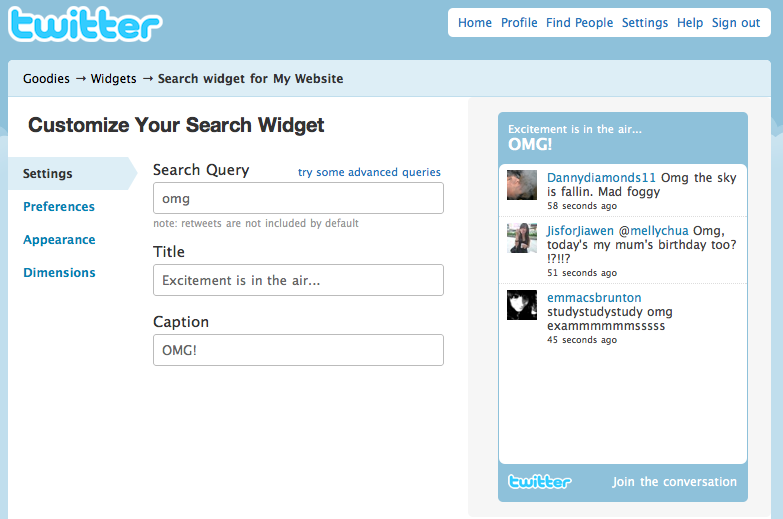
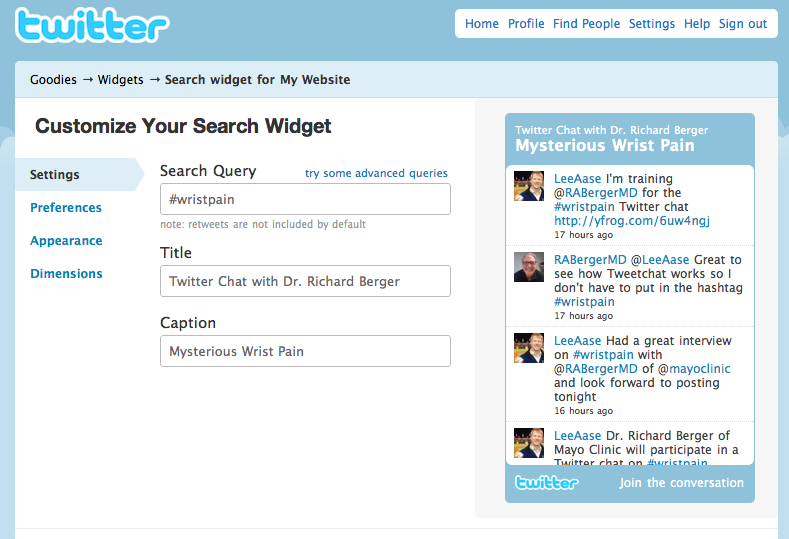
2. Since you don’t really want to display all of the Tweets using “OMG” in their body, you need to change the title and search criteria. Here’s what I did for my widget about the #wristpain Twitter chat:
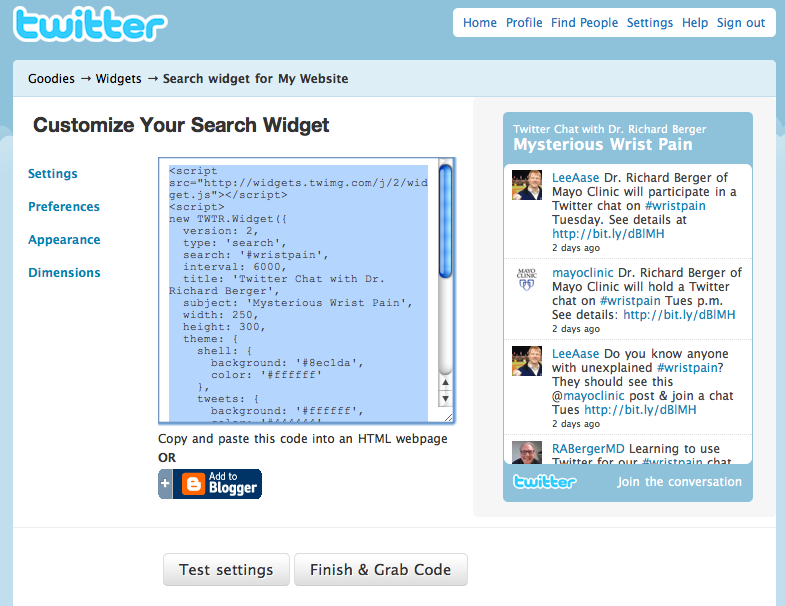
3. You can adjust appearance and other settings if you want, but all you really need to do at this point is click the “Finish & Grab Code” button, highlight the code by clicking on it, and copy it to your clipboard.
4. Go to your self-hosted WordPress blog (the process is similar for Blogger or Typepad) and either create a text widget for the sidebar, or a new post into which you want to insert your widget.
If you are doing a new post, be sure to switch from Visual to HTML view before you paste in your code:
